Vineyard Observations
Observations are the heart of your vineyard monitoring. They allow you to record everything you observe in the field.
Creating an Observation
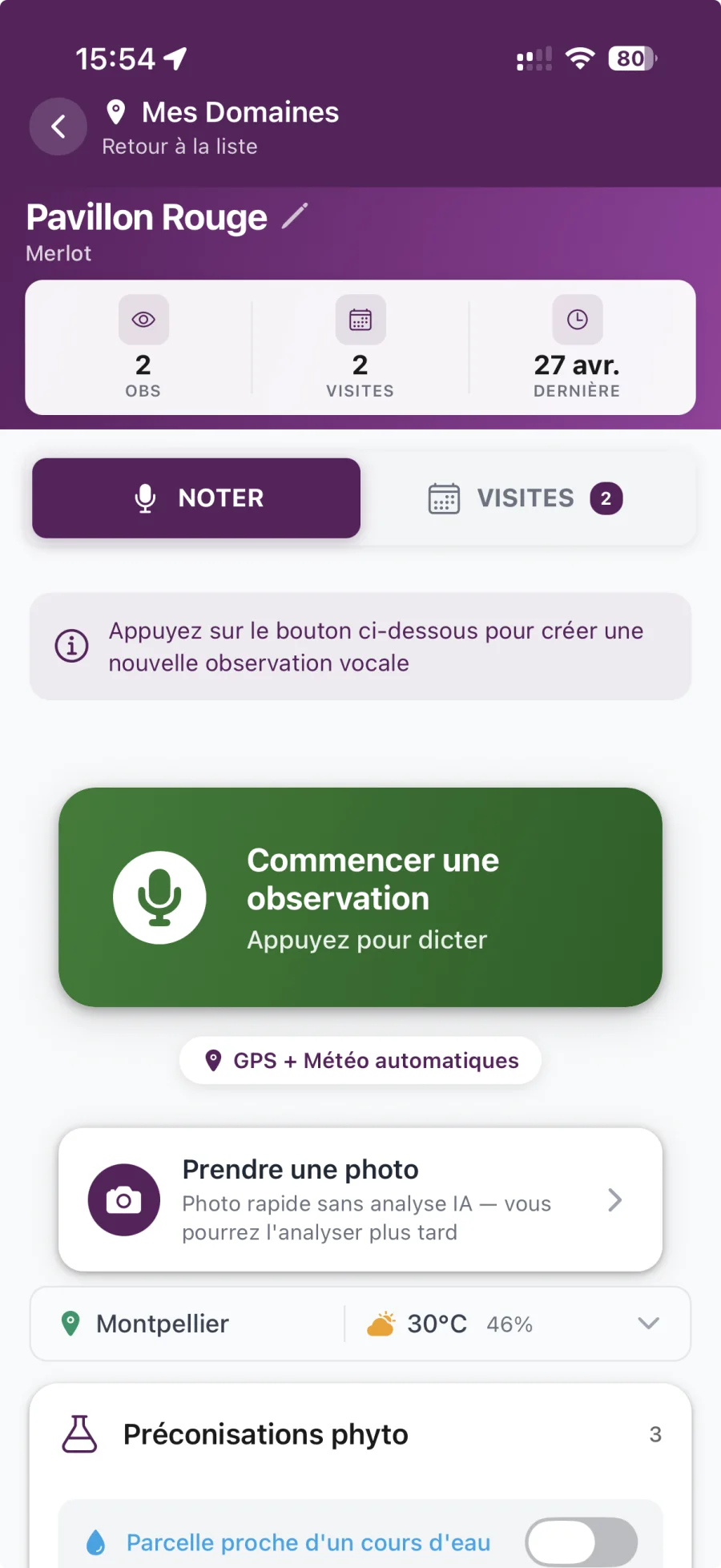
Method 1: Via the FAB (quick) button
- Press the floating mic button
- Speak your observation
- The application automatically transcribes
- Complete the missing information
Method 2: Via the Observations screen (complete)
- Go to the “Observations” tab
- Tap the “+” button on the top right
Fill out the full form
Step 1: Voice Recording
Press the mic button
- Speak clearly and distinctly
- Recording stops automatically or tap “Stop”
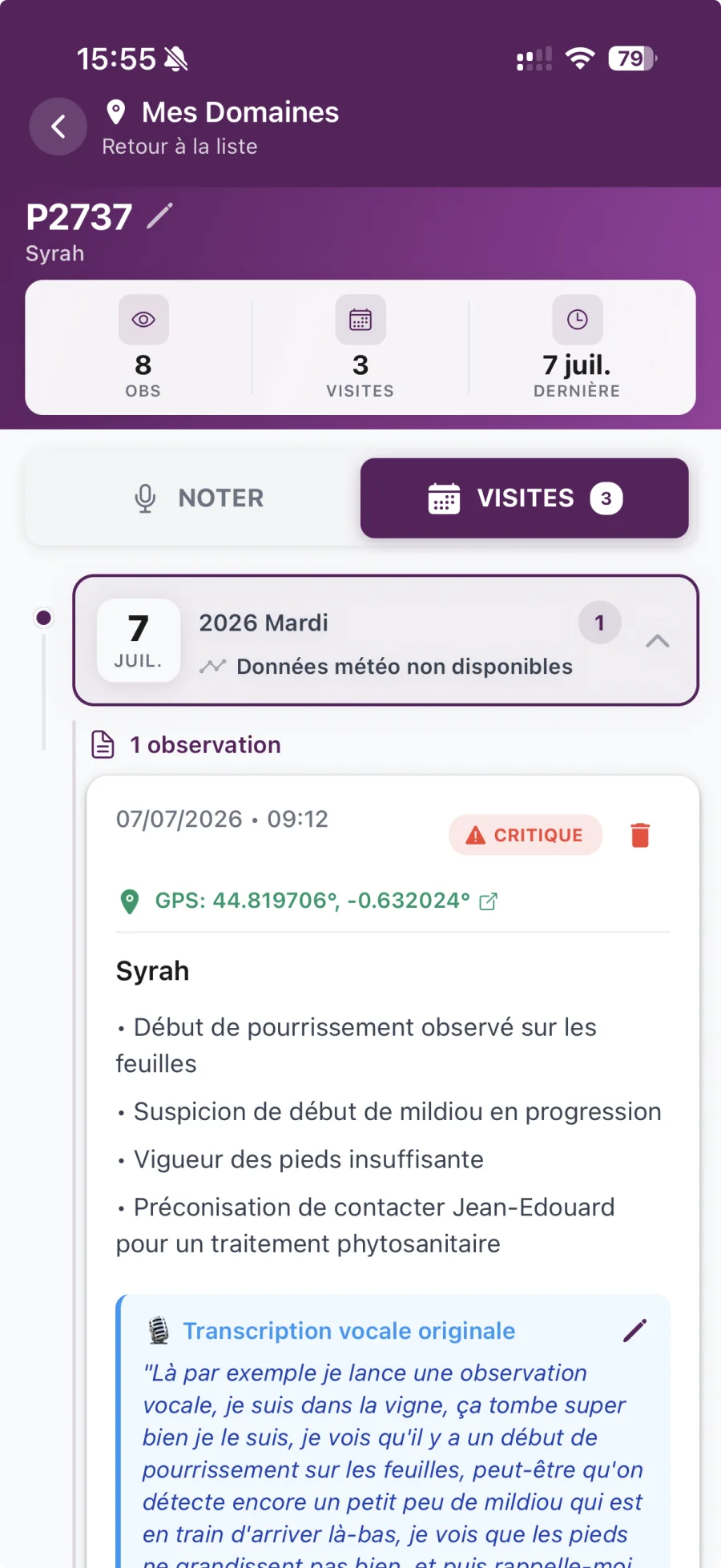
- The transcription automatically appears in the text field
- You can edit the transcribed text if necessary
Tips for good recording:
- Speak at a distance of 20-30 cm from the microphone
- Avoid background noise
- Speak at a normal pace, neither too fast nor too slow
- Mention important details: plot, problem observed, phenological stage
Step 2: Selection of the domain and the plot
- Tap “Domain” to select your domain
- Press “Plot” to select the plot concerned
- If the plot does not yet exist, you can create it directly from here
Step 3: Geolocation
- Geolocation is done automatically when you create an observation
- The app saves your GPS coordinates
- You can see your location on the map
- Optional: You can manually adjust the position on the map
Step 4: Adding Photos
- Tap the camera or gallery icon
- From the camera: Take a photo directly
- From gallery: Select an existing photo
- You can add multiple photos per observation
- Photos are automatically associated with the plot
Image analysis with AI: After adding a photo, the AI automatically analyzes the image. The analysis can detect problems (diseases, pests, deficiencies). The results of the analysis appear in the observation and can trigger phytosanitary suggestions.
Step 5: Weather Conditions
- Weather conditions are recorded automatically for each observation
- Temperature, humidity, precipitation, wind
- This data comes from integrated weather services
- You can see the weather history in the plot detail
Phytosanitary Recommendations
Phytosanitary recommendations help you choose the right products to treat the problems detected.
Automatic suggestions
- Automatic detection: When you mention a problem in your observation (eg: "mildew", "powdery mildew", "mites"), the AI automatically detects these problems
- Display of suggestions: A “Recommendations” section appears in your observation with product suggestions
- Information displayed:
- Product name
- Marketing authorization number
- Active substances
- Recommended dose
- DAR (Delay Before Harvest) in days
- ZNT (Untreated Zone) in meters
- DRE (Reentry Delay) in hours
Manual product search1. In an observation, tap “Search for product”
- Use the search bar to search by:
- Product name
- Active ingredient
- Target (disease/pest)
- Apply filters:
- Maximum DAR: Limits products according to the time before harvest
- Maximum ZNT: Important if your plot is close to a watercourse
- Status: Authorized, Withdrawn, etc.
- Select a product to see full details
- Press "Add" to associate it with your observation
Important regulatory information:
- DAR (Delay Before Harvest): Number of days to be respected between treatment and harvest
- ZNT (Untreated Zone): Distance to be respected from watercourses
- DRE (Reentry Delay): Time to wait before returning to the plot after treatment
Phyto by Domaine
you can apply phytosanitary products at the estate level rather than plot by plot. This functionality is ideal for preventive or systematic treatments that apply to all your plots.
How it works
- On your plot list screen, press the + (FAB) button
- Select “Phyto domaine” — the subtitle specifies “All plots, current and future”
- Search and select one or more products in the E-Phy database
- Validate: the product is instantly applied to all existing plots of the estate
Automatic inheritance:
Any new plot created in the domain (manually or by CSV import) automatically inherits the phyto products defined at the domain level. You no longer need to reapply treatments one by one.
Technical operation
- Intelligent deduplication: If a product is already present on a plot, it is not added in duplicate
- Merge of recommendations: Existing products on each plot are kept, new ones are added
- Multi-user: Concurrency is managed automatically — several users can work in parallel without conflict