No result found. Try another keyword.
Complete User Guide - ŒnoT
Welcome to the complete ŒnoT guide. This document guides you through discovering and using all the features of the application.
What is ŒnoT?
ŒnoT is a complete vineyard management application that combines artificial intelligence, voice recording, and geolocation to transform your field observations into professional reports.
Main Features:
- Intelligent Voice Dictation: Record your observations directly in the field, AI automatically transcribes and analyzes
- Plot Management: Organize your domains and plots with precise geolocation
- Professional Reports: Generate laboratory-quality PDF reports
- Tasting Module: Record and analyze your tastings with customizable grids
- Phytosanitary Recommendations: Access the E-Phy database and apply treatments at the domain level
- Offline Mode: Work without connection, automatic sync when back online
- Integrated Weather: Automatic weather conditions for each observation
- Smart Reminders v3.6.1: AI automatically detects your intentions and creates scheduled reminders
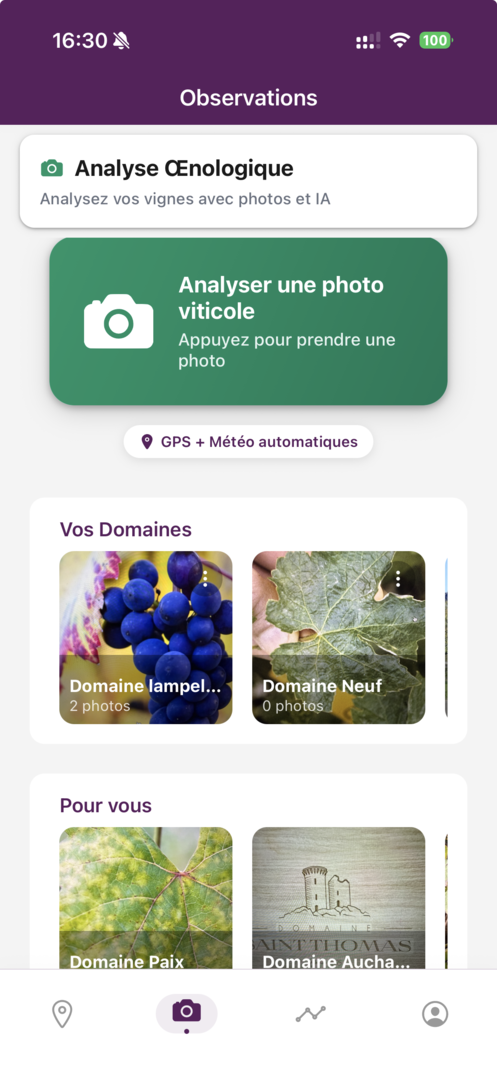
Mobile App vs Web Interface
Mobile App
- Optimized for field use
- Real-time voice recording
- Automatic geolocation
- Direct photo capture
- Complete offline mode
- Automatic sync
Web Interface
- In-depth consultation and analysis
- Advanced report editing
- PDF and Word export
- Complete subscription management
- Detailed analytics and statistics
- Complete photo gallery
Getting Started
For the mobile app:
- Download the app from the App Store (iOS) or Google Play (Android)
- Create an account or log in
- Sign in with Google or Apple v3.14.0: log in with one tap using your Google account or "Sign in with Apple", with no password to remember. The same account works on both mobile and web.
- Allow microphone access (for voice recording)
- Allow location access (for geolocation)
- Allow camera access (for photos)
For the web interface:
- Go to https://web.oenot.io
- Log in with your credentials
- Use a modern browser (Chrome, Firefox, Safari, Edge)
Mobile App - Complete Guide
Dashboard
The Dashboard is your main entry point into the application. It gives you an overview of all your viticultural activities.
Overview
Main Statistics:
- Total plots: Shows the number of plots in your domains
- Today's observations: Number of observations recorded today
- Alerts: Number of alerts requiring your attention
Quick Voice Recording Button (FAB)
The floating button (FAB) at the bottom right allows you to quickly create an observation:
- Press the microphone button
- Speak your observation (e.g., "Powdery mildew detected on North plot leaves, treatment needed")
- The app automatically transcribes your voice
- Select the plot concerned
- Add photos if needed
- Save the observation
Viticultural Observations
Observations are the heart of your viticultural monitoring. They allow you to record everything you observe in the field.
Creating an Observation
Method 1: Via FAB button (quick)
- Press the floating microphone button
- Speak your observation
- The app automatically transcribes
- Complete any missing information
- Speak at a distance of 20-30 cm from the microphone
- Avoid background noise
- Speak at a normal pace, not too fast or too slow
- Mention important details: plot, problem observed, phenological stage
Phytosanitary Recommendations
Phytosanitary recommendations help you choose the right products to treat detected problems.
- PHI (Pre-Harvest Interval): Number of days to respect between treatment and harvest
- Buffer Zone: Distance to respect from watercourses
- REI (Re-Entry Interval): Time to wait before returning to the plot after treatment
Domain-Level Phyto v3.9.0
Since version 3.9, you can apply phytosanitary products at the domain level rather than plot by plot. This feature is ideal for preventive or systematic treatments that apply to all your parcels.
How it works
- On your plot list screen, tap the + button (FAB)
- Select "Domain Phyto" — the subtitle reads "All parcels, current and future"
- Search and select one or more products from the E-Phy database
- Confirm: the product is instantly applied to all existing parcels in the domain
Any new parcel created in the domain (manually or via CSV import) automatically inherits the phyto products defined at the domain level. You no longer need to reapply treatments one by one.
Technical details
- Smart deduplication: If a product already exists on a parcel, it won't be added again
- Merged recommendations: Existing products on each parcel are preserved, new ones are added
- Multi-user safe: Concurrency is handled automatically — multiple users can work in parallel without conflicts
Global plots view v3.13.0
The "Plots" tab now shows all your plots across every domain in a single list. The domain appears as a subtitle on each plot so you can locate it at a glance.
- Scope selector: switch between the global view (all plots) and a specific domain
- Tabbed navigation: a tabbed header separates the "Domains" view from the "Plots" view
Tasting Module UX v3.12.0
The tasting module allows you to record and analyze your wine tastings in a structured way. Since version 3.12, the flow has been redesigned to be faster, with direct access to your tasting history.
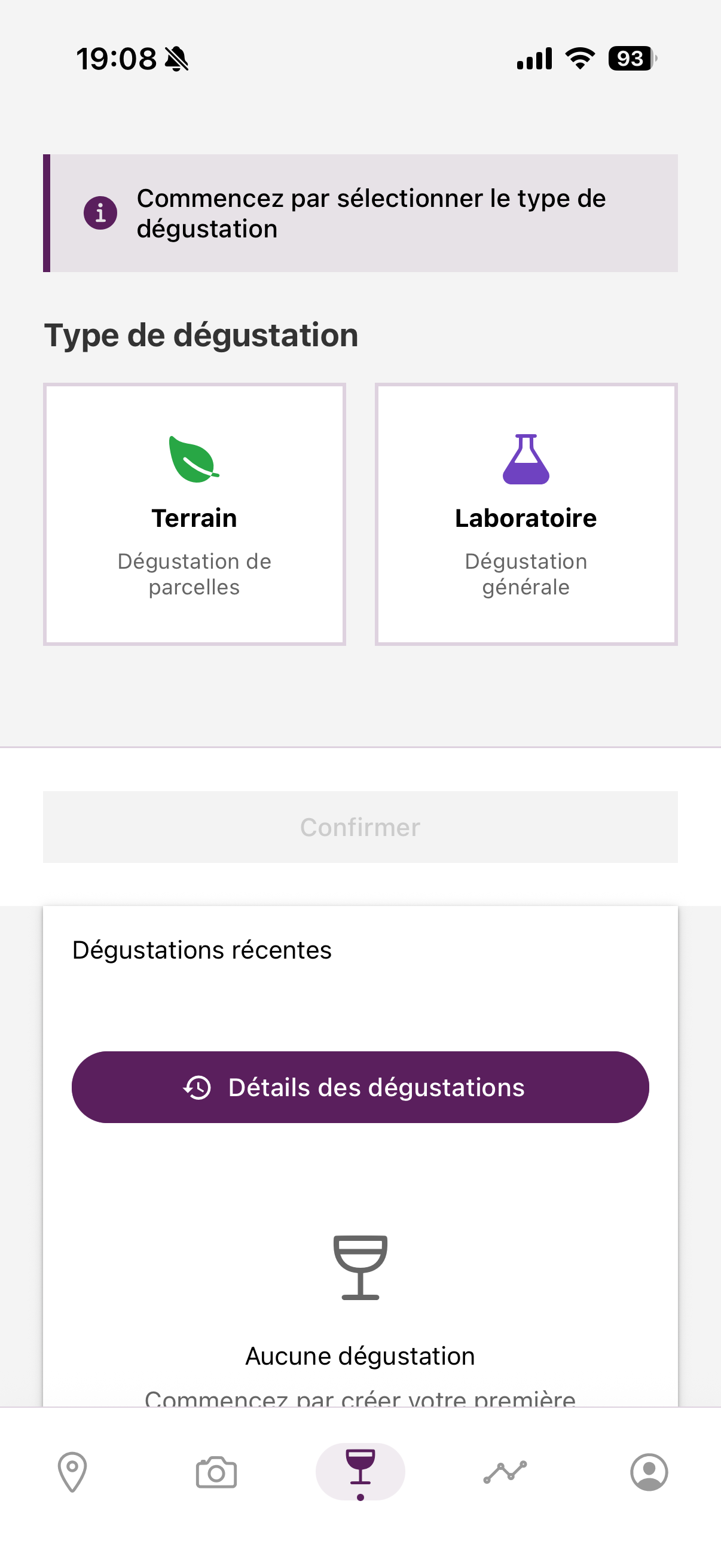
Creating a Tasting
Step 1: Context Selection
The context defines where the tasting takes place:
- Field: Field tasting, linked to a plot
- Laboratory: Laboratory tasting, sample
- Cellar: Cellar tasting, linked to a tank
Step 2: Voice Recording
Describe your tasting naturally:
- Visual: Color, intensity, clarity, brightness
- Olfactory: Intensity, aromatic families, first nose, second nose
- Gustatory: Attack, acidity, tannins, alcohol, body, balance, length
- Overall: General impression, typicity, complexity, aging potential
"Visually, the wine shows a ruby red color, quite intense. On the nose, we perceive red fruit aromas, cherry, with spicy notes. On the palate, the attack is frank, acidity is balanced, tannins are present but supple. The wine has good balance, medium length. Overall, it's a typical terroir wine, with medium complexity and an aging potential of 3 to 5 years."
Free Dictation New
Free dictation allows you to take voice notes per domain, without AI processing. Ideal for quickly capturing an idea, a memo, or a personal remark without it being automatically analyzed or structured.
Activation
- Go to your Profile in the mobile app
- Enable the "Free Dictation" option
Usage
Once enabled, a new icon appears in the "My Domains" section:
- Go to the "My Domains" tab
- Swipe right on a domain
- The free dictation icon appears
- Tap it to start a dictation linked to that domain
- Speak freely: your voice note is recorded and transcribed without AI processing
Finding your free dictations
Your free dictations are accessible in the "Reports" section, in a dedicated "Free Dictation" tab. From this tab, you can:
- View all your free dictations by domain
- Automatically insert them into your reports
- Easily find them thanks to sorting by date and domain
Typical use cases
- "Note for Château Margaux domain: remember to order new barrels"
- "Personal remark: the client wants a delivery before the end of March"
- "Memo: contact the supplier for corks"
Voice recording keeps running when you lock your phone or switch to another app. If an incoming call interrupts a dictation, recording resumes automatically once the call ends, without losing the segment in progress.
Smart Reminders System v3.6.1
The reminder system ensures you never forget an important task. It's like a personal assistant who takes notes for you during your tours.
Typical Use Cases
During a cellar tasting
"Note: remind me to monitor tank 12 fermentation tomorrow morning"
→ Notification the next day at 8:00 AM.
How it Works
Step 1: You speak naturally
The oenologist dictates naturally during work. No need to formulate a special command.
Step 2: The app understands your intention
The system recognizes expressions like:
"Remind me..."
"I need to..."
"Don't forget..."
"I'll have to come back..."
"To monitor..."
Step 3: Intelligent Extraction
AI automatically extracts: the task, the date, the time, urgency, and context.
Step 4: Notification at the right time
You receive a reminder at the scheduled time, even if you're offline.
Voice Commands Guide v3.7.2
ŒnoT understands your natural language. No need to formulate special commands: speak as you would with a colleague. Here are the words and expressions the AI recognizes to automatically trigger features.
Phytosanitary Detection (diseases & pests)
Mention a plant health issue in your voice dictation and ŒnoT will automatically suggest treatment products from the E-Phy database.
| Problem | Recognized words | Example phrase |
|---|---|---|
| Downy mildew | mildiou | "I see mildiou on the lower leaves" |
| Powdery mildew | oïdium, oidium | "Slight traces of oïdium on the clusters" |
| Botrytis | botrytis, pourriture grise, pourriture | "Beginning of botrytis on the pinot" |
| Black rot | black-rot, black rot, blackrot | "Black-rot spots on the leaves" |
| Excoriose | excoriose | "Excoriose visible on the shoots" |
| Flavescence dorée | flavescence, flavescence dorée | "Suspected flavescence dorée" |
| Esca | esca | "Esca symptoms on three vines" |
| Eutypiose | eutypiose | "Dead arm, probably eutypiose" |
| Mites | acariens, araignées, tétranyques | "Mites present on the underside of leaves" |
| Leafhoppers | cicadelle, cicadelles | "Many leafhoppers this year" |
| Grape moths | tordeuses, vers de la grappe, eudémis, cochylis | "Grape moths in the clusters" |
| Mealybugs | cochenilles, cochenille | "Mealybugs on the wood" |
| Thrips | thrips | "Thrips damage on young shoots" |
As soon as a keyword is detected in your dictation, a phytosanitary product suggestions panel automatically opens with authorized products, dosage, PHI, buffer zone, and REI.
Organic & Biocontrol filters v3.11.0
In the suggestions panel, two filters let you narrow the list down to products that match your specifications:
- Organic: shows only products usable in organic farming
- Biocontrol: shows only biocontrol products referenced by ANSES
The statuses come from the official ANSES E-Phy data, updated together with the database.
Herbicide & Weeding Detection
Talk about a weed problem and ŒnoT will suggest suitable weeding solutions.
| Problem | Recognized words | Example phrase |
|---|---|---|
| General weeding | désherbage, herbicide, mauvaises herbes | "We need to weed along the rows" |
| Weeds | adventices, plantes envahissantes | "Lots of weeds under the vine row" |
| Grass weeds | graminées, chiendent | "Couch grass is taking over the plot" |
| Broadleaf weeds | dicotylédones | "Broadleaf weeds to treat before flowering" |
| Regrowth | repousses, mousses | "Regrowth to manage at the base of the vines" |
Natural speech examples
- "The inter-row is full of weeds, needs treatment"
- "North plot, lots of grass weeds under the vine"
- "The weeds are taking over, plan a weeding"
- "Significant regrowth at the base of the east plot vines"
Automatic Reminder Detection
The AI detects your intentions and automatically creates scheduled reminders. Here are the types of recognized expressions:
| Category | Recognized expressions | Example |
|---|---|---|
| Explicit request | Rappelle-moi..., N'oublie pas..., Pense à..., Note-le..., Ne pas oublier... | "Rappelle-moi de vérifier la cuve 12 demain" |
| Action intent | Faut que je..., Il faut que je..., Je dois... | "Faut que je traite avant la pluie de jeudi" |
| Field observation | Faudra revenir..., À revoir..., À surveiller..., Je le surveille... | "Faudra revenir vérifier la semaine prochaine" |
| Planning | À faire..., À prévoir..., À planifier..., À programmer..., À vérifier... | "À prévoir un soutirage avant la fin du mois" |
| Client contact | Rappeler le client..., Contacter..., Relancer..., Appeler... | "Relancer le domaine Margaux pour le devis" |
| Viticultural tasks | Traitement à..., Sulfatage..., Taille à..., Soutirage..., Vendange... | "Sulfatage à prévoir pour lundi" |
Recognized Dates and Times
The AI automatically extracts time references from your speech:
Relative dates
aujourd'hui demain après-demain lundi mardi mercredi jeudi vendredi samedi dimanche semaine prochaine mois prochain dans 3 jours dans 2 semaines
Times
le matin l'après-midi le soir à midi à 9h à 14h30
In a single dictation on the Merlot plot:
"Parcelle Merlot, je vois du mildiou sur les feuilles basses et des graminées sous le rang. Faudra revenir traiter vendredi matin avant la pluie. Et rappelle-moi de contacter le labo pour les analyses la semaine prochaine."
Automatic result:
- Observation recorded with structured transcription
- Phyto suggestions for downy mildew (authorized fungicides)
- Weeding suggestions for grass weeds (herbicides)
- Reminder 1: "Treat" → Friday morning, Merlot plot, high urgency
- Reminder 2: "Contact the lab" → Next week
Offline Mode
ŒnoT works completely in offline mode. You can record your observations and tastings even without an internet connection.
How Offline Mode Works
Status Indicator:
- At the top of the screen, an indicator shows your connection status
- Green: Connected
- Orange: Offline mode, sync pending
- Red: Sync error
Automatic Sync
When back online:
- The app automatically detects connection return
- Sync starts automatically in the background
- All pending observations and tastings are synced
- Voice recordings are processed and analyzed
- A confirmation message appears once sync is complete
Web Interface - Complete Guide
The web interface offers advanced features for analyzing, editing, and managing your viticultural data.
Log in to the web interface with your email and password, or with one tap via "Continue with Google" or "Continue with Apple". The same account works on both web and mobile: social sign-in and email sign-in point to the same ŒnoT profile.
Dashboard
The web Dashboard gives you a complete overview of your activities.
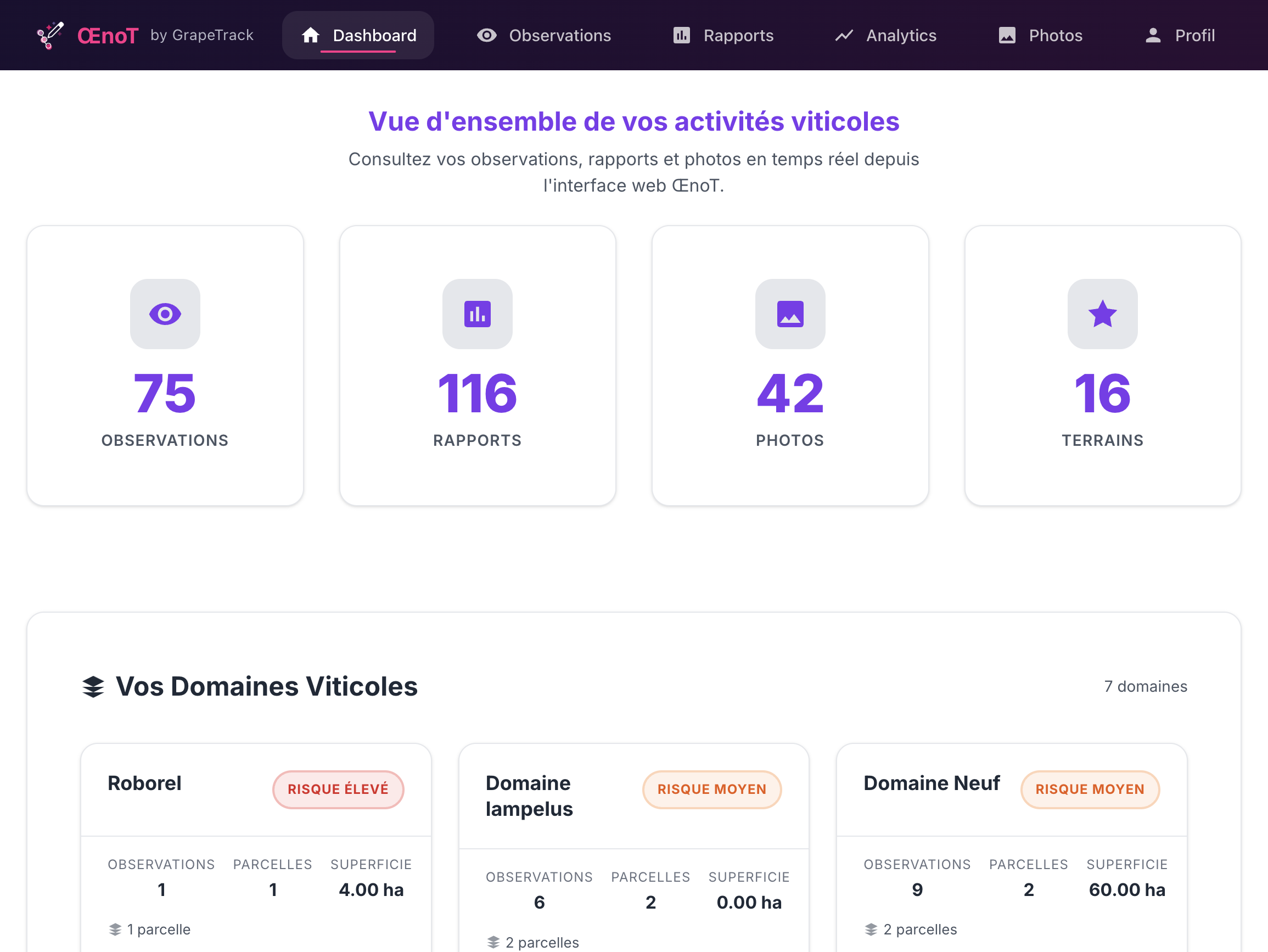
Main Statistics:
- Total observations: Total number of recorded observations
- Total tastings: Total number of tastings
- Total plots: Number of managed plots
- Recent activity: Activity graphs over the last 7, 30, or 90 days
Reports
The web interface offers advanced features for generating and editing reports.
Report Generation
- Go to "Reports" in the menu
- Click "New report"
- Select the report type
- Select the plots/domains to include
- Choose the period
- Choose the format (grouped or separated)
- Click "Generate report"
- The report is generated and displayed in the editor
PDF and Word Export
- Once the report is edited, click "Export"
- Choose the format:
- PDF: Professional format, print-ready
- Word: Editable format (.docx)
- The file downloads automatically
Drag & Drop Photos New
You can now insert photos directly into your reports via drag & drop:
- Open a report in the editor
- Access the "Photos" tab in the report's side panel
- Simply drag and drop the desired photos into the report body
- Photos are automatically inserted at the chosen location
Global Reports by Date New
Global report generation has been redesigned with date-based sorting in the app, for better chronological readability of your observations. The multi-plot phytosanitary table has also been fixed for more reliable rendering.
Free Dictations in Reports New
A new "Free Dictation" tab is available in the Reports section. Your free dictations recorded from the mobile app are automatically available and can be inserted into your reports.
Saved AI prompts v3.14.0
In the editor, the AI assistant that rephrases and enriches your reports now keeps track of your instructions:
- Saved prompts: store your recurring instructions (tone, structure, your own phrasings) to reuse them in one click
- Recent history: find your latest prompts right in the editor, without retyping them
Analytics
The Analytics page offers in-depth analysis of your data.
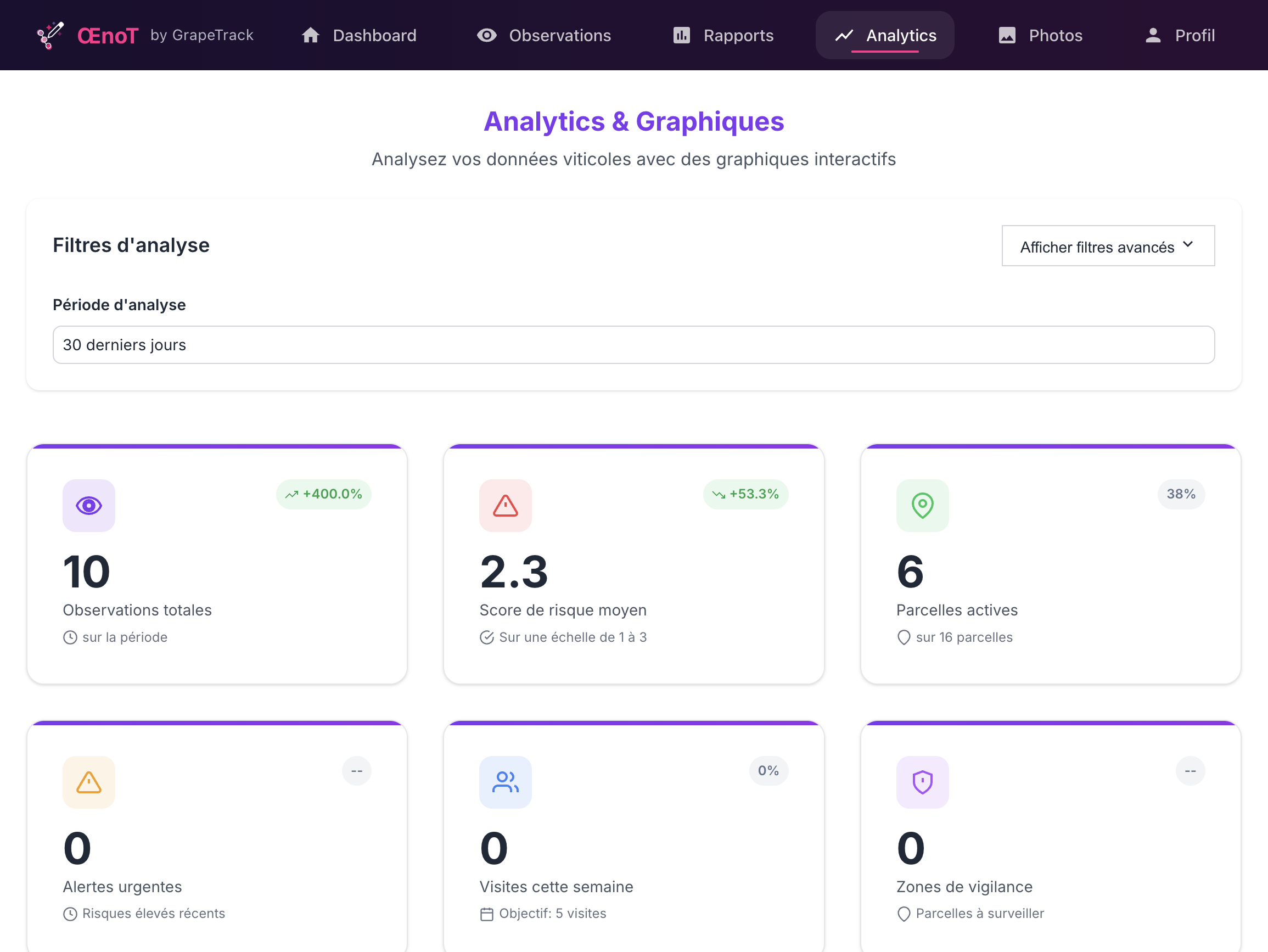
Detailed Statistics:
- Distribution by domain: Pie chart
- Distribution by plot: Bar chart
- Time evolution: Line chart
- Distribution by problem: Horizontal bar chart
- Distribution by grape variety: Pie chart
Advanced Features
Artificial Intelligence
ŒnoT uses artificial intelligence to automate and improve your observations.
Voice Transcription
- Real-time transcription
- French support and regional accents
- Automatic correction of transcription errors
Automatic Observation Analysis
- Automatic detection of mentioned problems
- Risk classification (low, medium, high)
- Extraction of key information (plot, grape variety, problem, phenological stage)
- Automatic summary generation
Yield Potential Tracking v3.10.0 · Beta
The Yield module turns your field observations, AWRI-inspired bunch counts, block history and local weather into a progressive yield estimate, block by block. Every estimate comes with a confidence level and a line-by-line explanation of the factors driving it.
Status: private beta — built through field iteration with a consulting oenologist and a winegrower. Access on request from the homepage.
A transparent agronomic model — not a black box
The goal isn't to replace the professional's eye, but to make the estimate more structured, more traceable and easier to justify. For each block, ŒnoT combines:
- Grape baseline: reference yield for the planted variety
- Appellation target: regulatory cap or the target you set
- Planting density: vines per hectare
- Vine age: coefficient based on vineyard maturity
- Observed signals: 3-level extraction on your voice dictations (confirmed finding / contextual mention / no usable signal) to limit false positives on downy mildew, powdery mildew, botrytis
- Block calibration: exponential smoothing learned from your past harvests — each harvest you log refines next year's estimate
The block view displays every factor and its associated confidence level, so you can justify the final number line by line to a client.
Assisted counting inspired by AWRI methods
The AWRI method (Australian Wine Research Institute) consists of counting bunches across several zones of a block. ŒnoT guides you from mobile via an AI chat:
- The chat asks zone by zone: number of vines counted, number of bunches
- Automatic extrapolation to the block (average bunches per vine)
- Auto-pause if you stop mid-session, resume from where you left off
- Minimum 3 zones for an estimate to be considered "Field" reliability (±10%)
Starting a count: how to
From the mobile app (in the field)
- Open the My Estates tab, then select the relevant estate
- In the block list, find the block to count. The Count button appears when you swipe right on the block card (or via the scale icon at the bottom of the card)
- Tap Count — the screen "Count · [block name]" opens with an AI chat and a green banner "Yield count mode"
- The chat starts the conversation. For each zone, type your reading in natural language, e.g.
10 vines, 132 bunches - The chat records the zone ("✓ Zone recorded: Zone 1 · 13.2 bunches/vine") and asks for the next one. The top banner shows the live count of recorded zones
- After 3 zones minimum, the chat offers to finalise. Reply "done" (or similar)
- A Diff card appears with the before/after comparison (yield range, confidence, tier). Tap View block to return to the block details, already updated
If you interrupt the session, ŒnoT lets you resume at the pause point the next time you open it.
From the web interface (at the desk)
- Log in at web.oenot.io and open the Yield tab in the left menu
- The Estate view appears by default: KPIs at the top, "Blocks to watch" table sorted by priority (red alerts = urgent, orange = watch, green = normal)
- Click a table row to open the Block details (or use the Block dropdown of the Details tab)
- In the right column, find the Field counting card. Click the green Start a count button: an inline chat opens in the card
- Enter your zone readings in the chat text area (same format as mobile:
10 vines, 132 bunches). The Send button validates each message - After 3 zones and the finalise command, a Diff card appears in the chat (before/after with directional arrow). The block view refreshes automatically (Estimate card, Season evolution chart, Counting history table highlighted in green)
Automatic weather (no sensor needed)
From the GPS of the latest observation, ŒnoT auto-fetches the useful indicators:
- Rainfall, growing degree days base 10, Huglin index, hot days and dry days (Open-Meteo archive, D-30)
- Live weather + 5-day forecast (OpenWeather, 10-min cache)
- Auto-updated via the weather pre-cache cron
AI vision on cluster photos
Cluster photos added to your observations are analysed by GPT-4o-mini, backing up the field counting (crop load, sanitary state). This analysis doesn't replace counting, it contextualises it.
The two web views
Estate view (default)
- Multi-block panorama with aggregated KPIs (tracked blocks, area, estate estimate, alerts)
- "Blocks to watch — by priority" table
- Export CSV button at the top of the table → downloads
oenot-yield-estate-YYYY-MM-DD.csv
Block details
- Estimate card: range in hL/ha + confidence level
- Season evolution chart
- Counting history table
- Field counting (AWRI chat) and Actual yield (calibration) cards in the right column
Conventional and organic recommendations
Actionable recommendations are available in conventional and organic options, with sources and use limits shown next to each one. You remain responsible for verifying the regulatory compliance applicable to your context before any application.
Actionable pathogenic factors v3.13.0
When a pathogenic factor (downy mildew, powdery mildew, botrytis…) weighs on a block's potential, ŒnoT makes it actionable: you can create a reminder directly from the identified factor, to schedule the intervention at the right time. Yield tracking and the reminders system work together.
Shared tracking across team members v3.13.0
On a shared domain, counts and yield tracking are visible to all members: anyone can start a count and the history is built as a team, block by block.
Log your actual harvests (calibration)
At the end of each season, log your actual yield block by block. ŒnoT automatically updates the block's calibration (exponential smoothing), which refines next year's estimate.
- Open the block view (web or mobile) and find the Actual yield (post-harvest) card in the right column
- Enter the actual yield in hL/ha (e.g.
54) and the year (e.g.2025). The previous year is pre-filled - Click Save. The entry appears in the history below (with a delete button in case of a mistake)
- The calibration is applied automatically. From 2 years of history, the confidence level may rise to "Calibrated" (±5%)
Target audience and access
The module is open as a priority to independent consulting oenologists and pilot estates. To request beta access, use the Request beta access button on the Yield section of the homepage.
Methodological disclaimer: ŒnoT provides a progressive estimate of yield potential, not an exact prediction. As long as the block hasn't reached veraison, the confidence level is capped at "Good". Reliability increases with field observations, counts and actual harvests logged for calibration. Any operational decision remains your responsibility.
Geolocation
Automatic Position Recording
- Each observation automatically records your GPS position
- Precise coordinates (latitude, longitude)
- Altitude if available
- Timestamp
Integrated Weather
Automatic Weather Conditions
- For each observation, weather conditions are recorded automatically
- Data from professional weather services
- Accuracy based on your location
Recorded Data
- Temperature (min, max, current)
- Relative humidity
- Precipitation (24h cumulative)
- Wind speed and direction
- Atmospheric pressure
- UV index
Troubleshooting and FAQ
Common Issues
Sync Issues
Symptom: Data doesn't sync between mobile and web.
Solutions:
- Check your internet connection
- Press "Sync now" in the mobile app
- Refresh the web page (F5)
- Log out and log back in
- If the problem persists, contact support
Failed Voice Recordings
Symptom: Voice recording doesn't work or transcription fails.
Solutions:
- Check that you've allowed microphone access
- Check your internet connection (for transcription)
- Speak more clearly and distinctly
- Reduce background noise
- Check that you haven't reached your voice recording quota
- In offline mode, the recording will be processed when back online
FAQ
Quota Questions
Q: What happens if I reach my quota?
A: You will receive a notification. You can either wait for monthly renewal or upgrade to a higher plan.
Q: Are quotas reset each month?
A: Yes, all quotas are reset at the beginning of each month according to your plan.
Subscription Questions
Q: Can I change plans at any time?
A: Yes, you can upgrade or downgrade your plan at any time from the Subscription page.
Q: Is there a free trial?
A: Yes, a 14-day trial is available for new users.
Feature Questions
Q: Can I use the app without an internet connection?
A: Yes, the app works completely in offline mode. All data is automatically synced when back online.
Q: Is data secure?
A: Yes, all data is encrypted and stored securely. We comply with GDPR.
Technical Questions
Q: What are the minimum required versions?
- iOS: 13.0 or higher
- Android: 8.0 (API 26) or higher
- Web browsers: Chrome, Firefox, Safari, Edge (recent versions)
Support and Contact
For any questions or issues, contact support:
- Email: [email protected]
- Technical support: Available Monday to Friday, 9am-6pm
Need additional help?
Contact usLast updated: June 2026 (v3.14.0)